Restore terminal

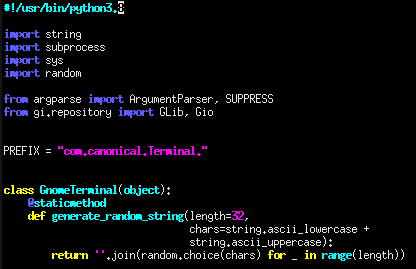
This happened when multiple python3 versions installed. We need to specify the exact version in that case. You can use Xterm like third party terminal for this.

sudo nano /usr/bin/gnome-terminal

Then, change:

#!/usr/bin/python3

to exact version

#!/usr/bin/python3.x

Reference :

#terminal, #ubuntu

Important tail commands

Outputs the last 10 lines of the file myfile.txt. Default is 10 lines.

tail /path/to/file/myfile.log

Outputs the last 100 lines of the file myfile.txt.

tail -n 100 /path/to/file/myfile.log 

Outputs the last 10 lines of myfile.txt, and keep follow on myfile.txt for updates; Here, -f option “which stands for follow” will keep the stream going…

tail -f /path/to/file/myfile.log

Selectively keep follow a log file in real time.

tail -f /path/to/file/myfile.log | grep 24.10.160.10

Outputs the last 10 lines of myfile.txt, and keep follow on myfile.txt for updates with a sleep interval. Here, -s option is for “sleep” and specify the sleep interval

tail -f -s 5 /path/to/file/myfile.log

We can use this to in conjunction with different other commands

ps aux | sort -nk +3 | tail -5

References :

  • https://www.howtogeek.com/481766/how-to-use-the-tail-command-on-linux/

#bash, #tail

Important vi commands

Starting vi

  • vi filename : edit filename starting at line 1
  • vi -r filename : recover filename that was being edited when system crashed

Navigating

  • ^f : move forward one screen
  • ^b : move backward one screen
  • ^d : move down (forward) one half screen
  • ^u : move up (back) one half screen

Searching Text

  • /string : search forward for occurrence of string in text
  • ?string : search backward for occurrence of string in text
  • n : move to next occurrence of search string
  • N : move to next occurrence of search string in opposite direction

Adding / Changing / Deleting text

  • i : insert text before cursor, until hit
  • I : insert text at beginning of current line, until hit
  • a : append text after cursor, until hit
  • A : append text to end of current line, until hit
  • o : open and put text in a new line below current line, until hit
  • O : open and put text in a new line above current line, until hit

Cutting and Pasting Text

  • yy : copy (yank, cut) the current line into the buffer
  • Nyy or yNy : copy (yank, cut) the next N lines, including the current line, into the buffer
  • p : put (paste) the line(s) in the buffer into the text after the current line

Exit vi

  • : x ENTER : quit vi, writing out modified file to file named in original invocation
  • :wq ENTER : quit vi, writing out modified file to file named in original invocation
  • :q ENTER : quit (or exit) vi
  • :q! ENTER : quit vi even though latest changes have not been saved for this vi call

References :

  • https://www.cs.colostate.edu/helpdocs/vi.html

#bash, #vi

Finding files in side a jar

List all files in jar-file-name.jar whose name is start with “SomeFileName”

jar -tvf jar-file-name.jar | grep "SomeFileName"

List all files in a jar order by size

jar -tvf jar-file-name.jar | sort -n -r

List all the classes contains the class name with package structure.

find filePath -name '*.jar' | xargs -I @ jar -tvf @ | grep ClassName
find filePath -name '*.jar' | xargs -I @ jar -tvf @ | grep /ClassName

Search and print the jar names and if the class exists then print the class name.

find filePath -name '*.jar' | while read F; do (echo $F; jar -tvf $F | grep ClassName.class) done

Search and print the jar name if the class exsists then prints the class name. (exact match only)

find filePath -name '*.jar' | while read F; do (echo $F; jar -tvf $F | grep /ClassName.class) done

#bash, #find, #jar, #search