Implementing Image Moderation with Google Vision

1. Get the Cloud Vision API Key (refer this)

  • Search for and enable: Cloud Vision API
  • Double check: APIs & Services > Enabled APIs
  • Then:
    APIs & Services > Credentials
    Create Credentials > API Key > Create > Copy (as GOOGLE_VISION_API_KEY)

2. Test the Implemenatation

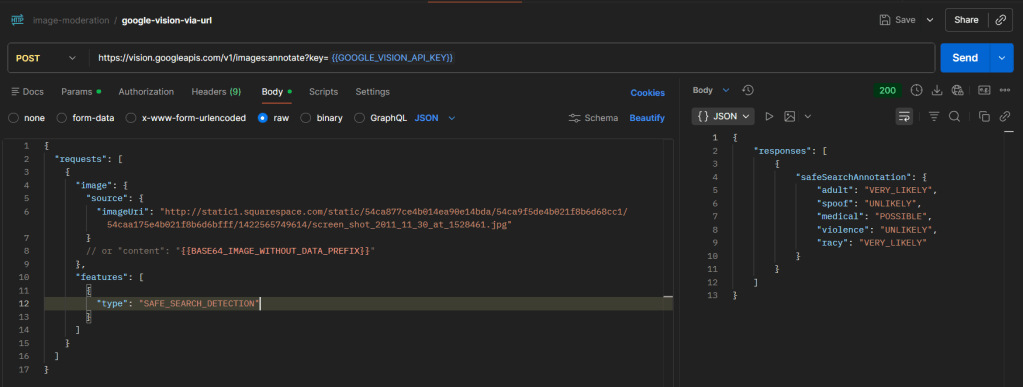
curl --location 'https://vision.googleapis.com/v1/images:annotate?key={{GOOGLE_VISION_API_KEY}}' \
--header 'Content-Type: application/json' \
--data '{
"requests": [
{
"image": {
"source": {
"imageUri": "http://static1.squarespace.com/static/54ca877ce4b014ea90e14bda/54ca9f5de4b021f8b6d68cc1/54caa175e4b021f8b6d6bfff/1422565749614/screen_shot_2011_11_30_at_1528461.jpg"
}
},
"features": [
{
"type": "SAFE_SEARCH_DETECTION"
}
]
}
]
}'

Sample response :

{
"responses": [
{
"safeSearchAnnotation": {
"adult": "VERY_LIKELY",
"spoof": "UNLIKELY",
"medical": "POSSIBLE",
"violence": "UNLIKELY",
"racy": "VERY_LIKELY"
}
}
]
}

Field Description :

FieldWhat it detects
adultPornography / explicit sexual content
racySuggestive (not explicit)
violencePhysical harm, weapons, blood
medicalMedical/surgical content
spoofFake / manipulated images

Possible values and meaning :

ValueMeaningPractical Interpretation
UNKNOWNModel couldnโ€™t determineTreat as risky / fallback
VERY_UNLIKELYAlmost certainly safeSafe
UNLIKELYProbably safeSafe
POSSIBLEMight contain contentReview
LIKELYHigh chanceBlock
VERY_LIKELYAlmost certainBlock

#cloud, #google, #image_moderation

Building a Simple Translation REST API using Google Cloud Translation API, FastAPI, and Python

1. Python Code

Create a file named: google_cloud_tr.py

from fastapi import FastAPI
from google.cloud import translate_v3 as translate
app = FastAPI()
PROJECT_ID = "<your-project-id>"
LOCATION = "global"
@app.get("/translate")
def translate_text(text: str, target: str):
client = translate.TranslationServiceClient()
parent = f"projects/{PROJECT_ID}/locations/{LOCATION}"
response = client.translate_text(
request={
"parent": parent,
"contents": [text],
"mime_type": "text/plain",
"target_language_code": target,
}
)
return {
"translatedText": response.translations[0].translated_text
}

2. Provide the Google Cloud JSON Key as an Environment Variable

  • Search for and enable: Cloud Translation API
  • Double check: APIs & Services > Enabled APIs
  • Then: IAM & Admin > Service Accounts

Steps:

  • Create a Service Account
  • Add one of these roles:
    • Cloud Translation API User
    • Cloud Translation Admin
    • or a higher role
  • Create and download the JSON key (e.g.: service-account.json)
  • Save it inside your project directory (D:\path\to\directory\google-cloud-translation\)

Provide the JSON key path as an environment variable:

$env:GOOGLE_APPLICATION_CREDENTIALS="D:\path\to\directory\google-cloud-translation\service-account.json"

3. Run the API

Create and activate a virtual environment:

python -m venv venv
.\venv\Scripts\Activate.ps1

Install prerequisites:

pip install google-cloud-translate fastapi uvicorn

Run the API:

uvicorn google_cloud_tr:app --reload

4. Test the Result

Request:

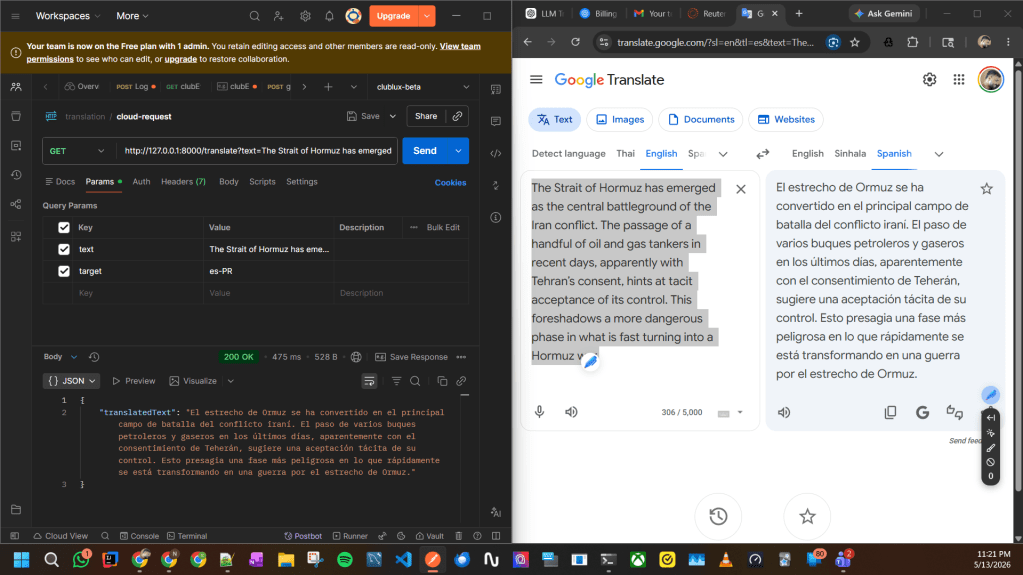
GET http://127.0.0.1:8000/translate?text=The Strait of Hormuz has emerged as the central battleground of the Iran conflict.&target=es

Example response:

{
"translatedText": "El Estrecho de Ormuz ha surgido como el principal campo de batalla del conflicto con Irรกn."
}

Note:

Google Cloud Translation mainly handles language translation.
For advanced regional localization (such as Puerto Rico Spanish, slang, or tone-specific translation), an LLM-based approach like OpenAI may provide more natural results. Please refer this.

#fastapi, #python

Building a Simple Translation REST API with OpenAI, FastAPI, and Python

1. Python code

Create a file named: openai_tr.py

from fastapi import FastAPI
from pydantic import BaseModel
from openai import OpenAI
import os
import logging
# Logging Configuration
logging.basicConfig(
level=logging.INFO,
format="%(asctime)s %(levelname)s %(name)s : %(message)s"
)
logger = logging.getLogger(__name__)
# OpenAI Client
client = OpenAI(
api_key=os.getenv("OPENAI_API_KEY")
)
# FastAPI App
app = FastAPI()
# Request Model
class TranslationRequest(BaseModel):
text: str
targetLanguage: str
# Locale Mapping
LOCALE_MAP = {
"es-PR": "Puerto Rico Spanish",
"es-MX": "Mexican Spanish",
"es-ES": "Spain Spanish",
"es-US": "United States Spanish",
"fr-CA": "Canadian French",
"pt-BR": "Brazilian Portuguese"
}
# Translation API
@app.post("/api/translations")
def translate(request: TranslationRequest):
locale_name = LOCALE_MAP.get(
request.targetLanguage,
request.targetLanguage
)
prompt = f"""
Translate the following text into natural {locale_name}.
Rules:
- Preserve tone and meaning
- Keep placeholders unchanged
- Keep HTML tags unchanged
- Avoid robotic translation
- Return only the translated text
Text:
{request.text}
"""
# Logging
logger.info("======================================")
logger.info("Translation Request Received")
logger.info("Target Language: %s", request.targetLanguage)
logger.info("Locale Name: %s", locale_name)
logger.info("Original Text: %s", request.text)
logger.info("Prompt:\n%s", prompt)
try:
response = client.chat.completions.create(
model="gpt-5",
messages=[
{
"role": "system",
"content": "You are a professional localization translator."
},
{
"role": "user",
"content": prompt
}
]
)
translated_text = response.choices[0].message.content
logger.info("Translated Text: %s", translated_text)
logger.info("======================================")
return {
"translatedText": translated_text,
"targetLanguage": request.targetLanguage
}
except Exception as e:
logger.exception("Translation Error Occurred")
return {
"error": str(e)
}

2. Provide the OpenAI API key as an environment variable

Go to the OpenAI API keys page and create a new secret key. OpenAIโ€™s quickstart also uses the OPENAI_API_KEY environment variable pattern for SDK authentication.[see]

$env:OPENAI_API_KEY="<your api key>"

3. Run the API

Create and activate a virtual environment:

python -m venv venv
.\venv\Scripts\Activate.ps1

Install prerequisites:

pip install openai fastapi uvicorn

Run the API:

uvicorn openai_tr:app --reload

4. Test the result

POST request:

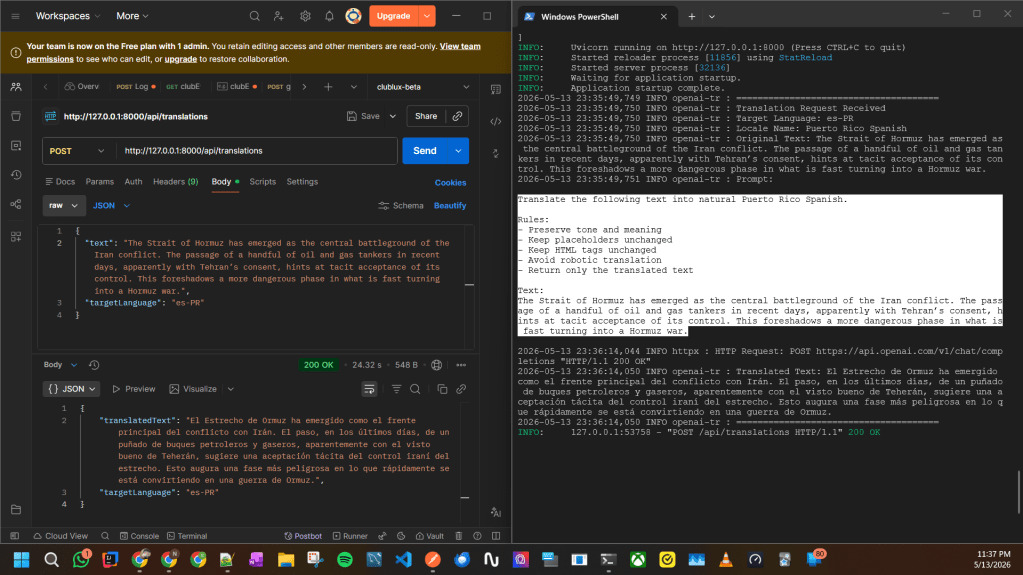
POST http://127.0.0.1:8000/api/translations

Body:

{
"text": "The Strait of Hormuz has emerged as the central battleground of the Iran conflict. The passage of a handful of oil and gas tankers in recent days, apparently with Tehranโ€™s consent, hints at tacit acceptance โ€‹of its control. This foreshadows a more dangerous phase in what is fast turning into a Hormuz war.",
"targetLanguage": "es-PR"
}

#fastapi, #openai, #python, #transator

Find and Replace in Notepad++

Find : ^([^]]*])\s Replace : \1\t

  • ^ โ†’ start of the line
  • ([^]]*]) โ†’ capture everything up to and including the first ]
    • [^]]* = โ€œany number of characters that are not ]โ€
    • then the first ]
  • \s โ†’ the space right after that ]
  • Replace with \1\t โ†’ the captured group (everything up to first ]) followed by a tab

Find : ([MIN-\d{4}])\s Replace : \1\t

  • (\[MIN-\d{4}\]) โ†’ captures [MIN-####] where #### is exactly 4 digits
  • \s โ†’ matches the space right after it
  • Replace with โ†’ \1\t โ†’ put back the captured [MIN-####] and replace the space with a tab

Remove [ and ] around [MIN-####]

Find : [MIN-(\d{4})] Replace : MIN-\1

  • \[MIN-(\d{4})\] โ†’ matches [MIN-2156]
    • \[ and \] โ†’ literal brackets
    • (\d{4}) โ†’ capture 4 digits
  • MIN-\1 โ†’ puts back the text without the brackets, using the captured digits

#notepad

Add new Resolution option for Display on Ubuntu

  1. Find the monitor or display using the xrandr command
$xrandr

Here, DP-1 will be your Display / Monitor ID

2. Get the Modeline string using one of below command

cvt 1366 768

or

gtf 1920 1080 60

3. Add new mode using Modeline output

xrandr --newmode "1920x1080_60.00"  172.80  1920 2040 2248 2576  1080 1081 1084 1118  -HSync +Vsync

4. Add created new mode to desired display

xrandr --addmode DP-1 "1920x1080_60.00"

Once this is done you can see the Resolution in the Settings > Display > Resolution dropdown.

5. Add to your bash profile to make it permanent

sudo gedit ~/.profile

Add below two commands to there.

xrandr --newmode "1920x1080_60.00"  172.80  1920 2040 2248 2576  1080 1081 1084 1118  -HSync +Vsync 
xrandr --addmode DP-1 "1920x1080_60.00"

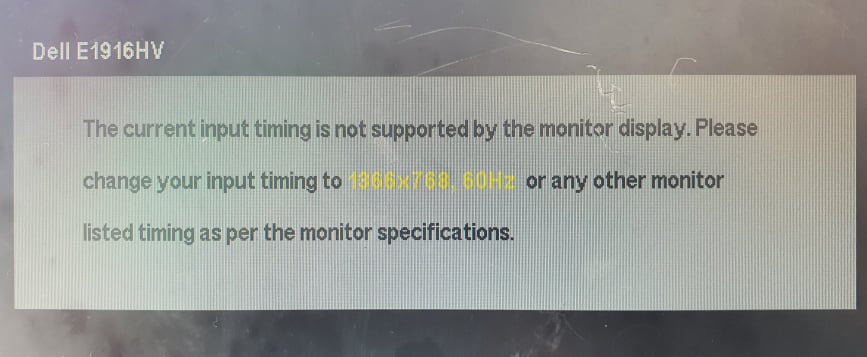
Note : Check the maximum resolution that monitor supports also otherwise it will display something like this.

References :

  • https://blog.mohessaid.com/fix-external-monitor-resolution-in-ubuntu-20-04-9c24cee65950
  • https://unix.stackexchange.com/questions/227876/how-to-set-custom-resolution-using-xrandr-when-the-resolution-is-not-available-i
  • https://askubuntu.com/questions/138408/how-to-add-display-resolution-for-an-lcd-in-ubuntu-12-04-xrandr-problem

#display, #ubuntu

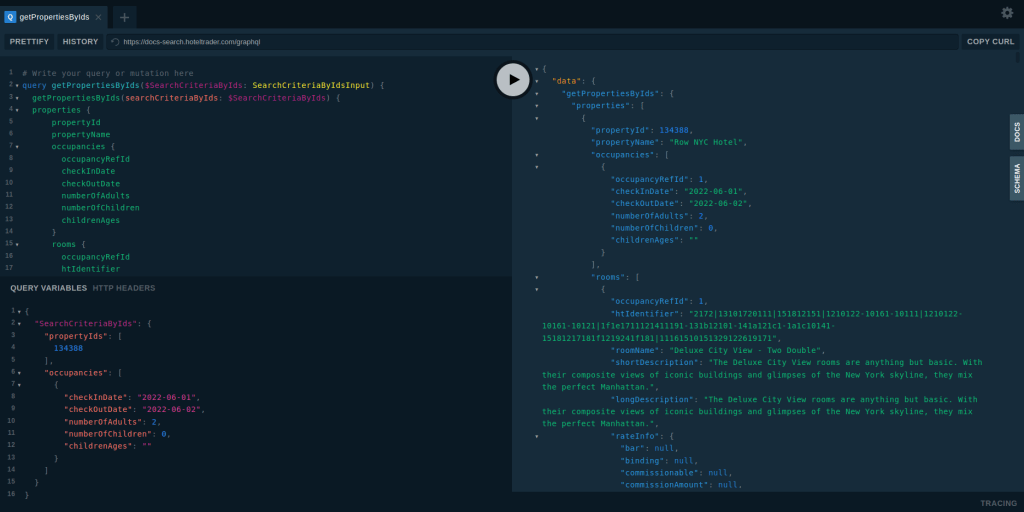
Invoking GraphQL APIs

API developed using GraphQL is normally provided a convenient UI Tools that can be used to test the API calls. there are various tools that can be used to build this as mentioned here.

You can easily enter the payload, Query Variables and HTTP Headers to invoke the API calls.

ref : https://anilist.co/graphiql

ref :

  • https://docs-search.hoteltrader.com/gui
  • https://hotel-trader.stoplight.io/docs/pull-api/ZG9jOjE0Njk0OTU0-overview

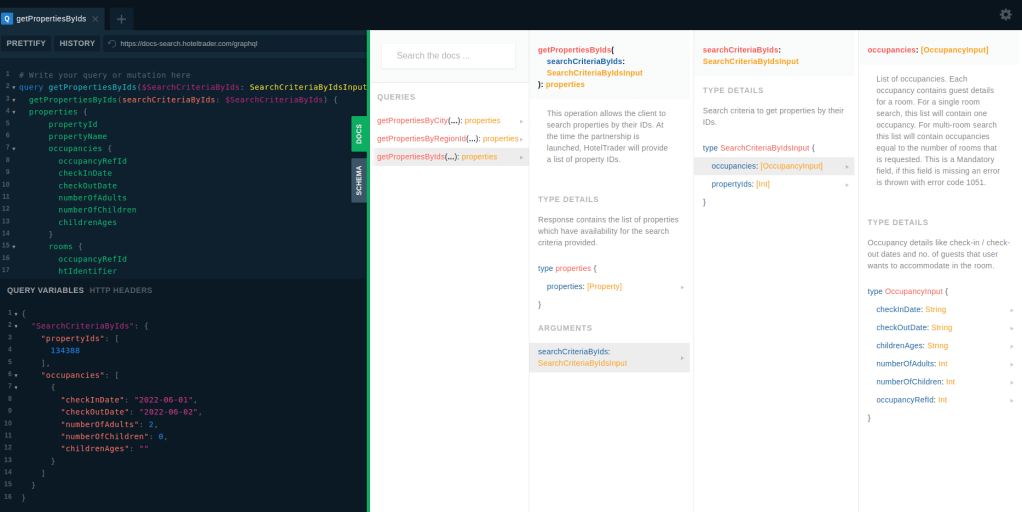
Also, you can use the Docs and Schema to see how is the API Structured before calling it.

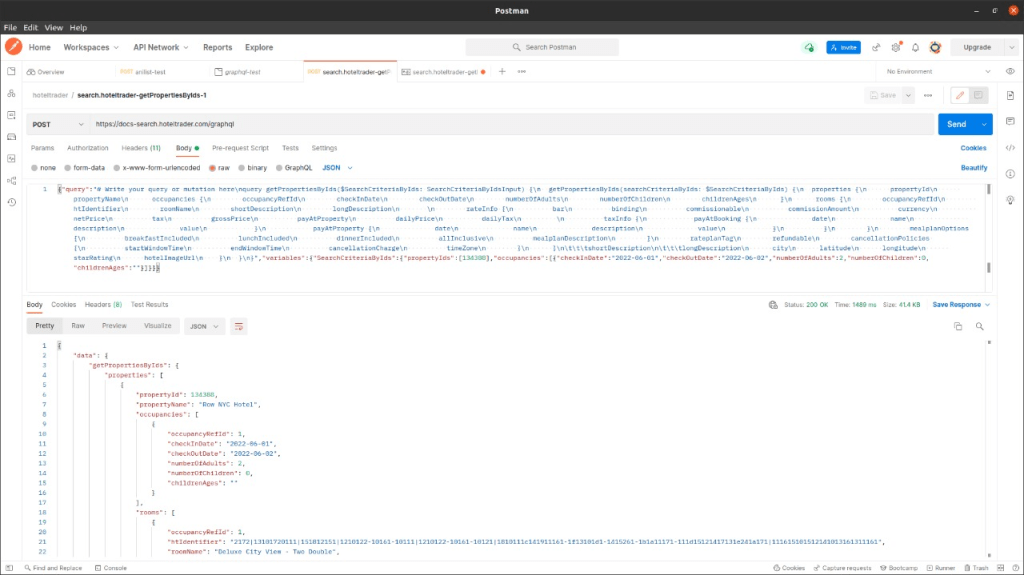
Anyway, same calls can be done trough curl or any HTTP client (eg : Postman / Insomnia / Direct Java HTTP Client code ). You can use debug mode (F12) in the browser to see how is the request goes to back-end.

curl :

curl 'https://docs-search.hoteltrader.com/graphql' -H 'Accept-Encoding: gzip, deflate, br' -H 'Content-Type: application/json' -H 'Accept: application/json' -H 'Connection: keep-alive' -H 'DNT: 1' -H 'Origin: https://docs-search.hoteltrader.com' --data-binary '{"query":"# Write your query or mutation here\nquery getPropertiesByIds($SearchCriteriaByIds: SearchCriteriaByIdsInput) {\n  getPropertiesByIds(searchCriteriaByIds: $SearchCriteriaByIds) {\n  properties {\n      propertyId\n      propertyName\n      occupancies {\n        occupancyRefId\n        checkInDate\n        checkOutDate\n        numberOfAdults\n        numberOfChildren\n        childrenAges\n      }\n      rooms {\n        occupancyRefId\n        htIdentifier\n        roomName\n        shortDescription\n        longDescription\n       \n        rateInfo {\n          bar\n          binding\n          commissionable\n          commissionAmount\n          currency\n          netPrice\n          tax\n          grossPrice\n          payAtProperty\n          dailyPrice\n          dailyTax\n         \n          taxInfo {\n            payAtBooking {\n              date\n              name\n              description\n              value\n            }\n            payAtProperty {\n              date\n              name\n              description\n              value\n            }\n          }\n        }\n        mealplanOptions{\n          breakfastIncluded\n          lunchIncluded\n          dinnerIncluded\n          allInclusive\n          mealplanDescription\n        }\n        rateplanTag\n        refundable\n        cancellationPolicies {\n          startWindowTime\n          endWindowTime\n          cancellationCharge\n          timeZone\n        }\n      }\n\t\t\tshortDescription\n\t\t\tlongDescription\n      city\n      latitude\n      longitude\n      starRating\n      hotelImageUrl\n    }\n  }\n}","variables":{"SearchCriteriaByIds":{"propertyIds":[134388],"occupancies":[{"checkInDate":"2022-06-01","checkOutDate":"2022-06-02","numberOfAdults":2,"numberOfChildren":0,"childrenAges":""}]}}}' --compressed

Postman :

Java

import java.io.BufferedReader;
import java.io.IOException;
import java.io.InputStreamReader;
import java.io.OutputStream;
import java.net.HttpURLConnection;
import java.net.URL;

import com.fasterxml.jackson.databind.ObjectMapper;

public class HotelTradeSearchTest {
	
	public static void main(String[] args) throws IOException {

		sendPOST();
		System.out.println("POST DONE");
	}

	private static void sendPOST() throws IOException {
		URL obj = new URL("https://docs-search.hoteltrader.com/graphql");
		HttpURLConnection con = (HttpURLConnection) obj.openConnection();
		con.setRequestMethod("POST");
		con.setRequestProperty("Content-Type", "application/json");

		// For POST only - START
		con.setDoOutput(true);
		OutputStream os = con.getOutputStream();
		os.write(
				("{\n"
				+ "\n"
				+ "    \"operationName\":\"getPropertiesByCity\",\n"
				+ "    \"variables\":{\n"
				+ "        \"searchCriteriaByCity\":{\n"
				+ "            \"city\":\"New York, New York, United States Of America\",\n"
				+ "            \"occupancies\":[\n"
				+ "                {\n"
				+ "                    \"checkInDate\":\"2022-06-01\",\n"
				+ "                    \"checkOutDate\":\"2022-06-02\",\n"
				+ "                    \"numberOfAdults\":2,\n"
				+ "                    \"numberOfChildren\":0,\n"
				+ "                    \"childrenAges\":\"\"\n"
				+ "                }\n"
				+ "            ]\n"
				+ "        }\n"
				+ "    },\n"
				+ "    \"query\":\"query getPropertiesByCity($searchCriteriaByCity: SearchCriteriaByCityInput) {\\n getPropertiesByCity(searchCriteriaByCity: $searchCriteriaByCity) {\\n properties {\\n propertyId\\n propertyName\\n occupancies {\\n occupancyRefId\\n checkInDate\\n checkOutDate\\n numberOfAdults\\n numberOfChildren\\n childrenAges\\n }\\n rooms {\\n occupancyRefId\\n htIdentifier\\n roomName\\n shortDescription\\n longDescription\\n rateInfo {\\n bar\\n binding\\n commissionable\\n commissionAmount\\n currency\\n netPrice\\n tax\\n grossPrice\\n payAtProperty\\n dailyPrice\\n dailyTax\\n taxInfo {\\n payAtBooking {\\n date\\n name\\n description\\n value\\n }\\n payAtProperty {\\n date\\n name\\n description\\n value\\n }\\n }\\n }\\n mealplanOptions {\\n breakfastIncluded\\n lunchIncluded\\n dinnerIncluded\\n allInclusive\\n mealplanDescription\\n }\\n rateplanTag\\n refundable\\n cancellationPolicies {\\n startWindowTime\\n endWindowTime\\n cancellationCharge\\n timeZone\\n }\\n }\\n shortDescription\\n longDescription\\n city\\n latitude\\n longitude\\n starRating\\n hotelImageUrl\\n }\\n }\\n}\\n\"\n"
				+ "\n"
				+ "}").getBytes()
				);
		os.flush();
		os.close();
		// For POST only - END

		int responseCode = con.getResponseCode();
		System.out.println("POST Response Code :: " + responseCode);

		if (responseCode == HttpURLConnection.HTTP_OK) { // success
			BufferedReader in = new BufferedReader(new InputStreamReader(con.getInputStream()));
			String inputLine;
			StringBuffer response = new StringBuffer();

			while ((inputLine = in.readLine()) != null) {
				response.append(inputLine);
			}
			in.close();

			ObjectMapper mapper = new ObjectMapper();
			System.out.println(mapper.writerWithDefaultPrettyPrinter().writeValueAsString(mapper.readTree(response.toString())));
			
		} else {
			System.out.println("POST request not worked");
		}
	}
}

Maven dependencies:

		<dependency>
			<groupId>com.fasterxml.jackson.core</groupId>
			<artifactId>jackson-core</artifactId>
			<version>2.11.2</version>
		</dependency>
		<dependency>
			<groupId>com.fasterxml.jackson.core</groupId>
			<artifactId>jackson-databind</artifactId>
			<version>2.11.2</version>
		</dependency>

References :

  • https://www.graphql-java.com/
  • https://www.baeldung.com/spring-graphql
  • https://www.howtographql.com/graphql-java/0-introduction/
  • https://developer.okta.com/blog/2020/01/31/java-graphql
  • https://github.com/graphql-java/graphql-java
  • https://github.com/graphql-java/tutorials/tree/master/book-details
  • https://www.programcreek.com/java-api-examples/?api=graphql.schema.idl.RuntimeWiring
  • https://www.tabnine.com/code/java/classes/graphql.schema.idl.RuntimeWiring
  • https://search.maven.org/artifact/com.graphql-java/graphql-java/16.2/jar
  • http://www.java2s.com/example/jar/g/download-graphqljava40jar-file.html
  • https://graphql.org/code/#generic-tools

#apis, #graphql, #java, #rest

Restore terminal

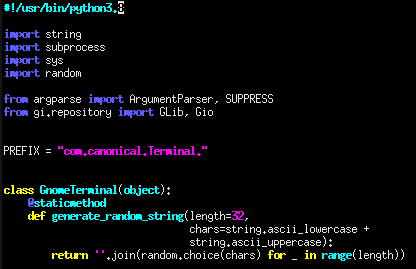
This happened when multiple python3 versions installed. We need to specify the exact version in that case. You can use Xterm like third party terminal for this.

sudo nano /usr/bin/gnome-terminal

Then, change:

#!/usr/bin/python3

to exact version

#!/usr/bin/python3.x

Reference :

#terminal, #ubuntu

SOAP UI Mock Service Runner


sudo bash /{{SoapUI-Root}}/bin/mockservicerunner.sh -Dsoapui.mock.connector.headerBufferSize=16000 {{url-or-path-to-project-xml}}

Example :

  • sudo bash /apps/soapUI/SoapUI-5.4.0/bin/mockservicerunner.sh -Dsoapui.mock.connector.headerBufferSize=16000 https://mock.awshost.io/soapUI/Projects/mock-xyz-soapui-project.xml &
  • sudo bash /home/namal/Fun/soapui/SoapUI-5.6.0/bin/mockservicerunner.sh -Dsoapui.mock.connector.headerBufferSize=16000 /home/namal/Fun/soapui/test-mock/Project-1-soapui-project.xml

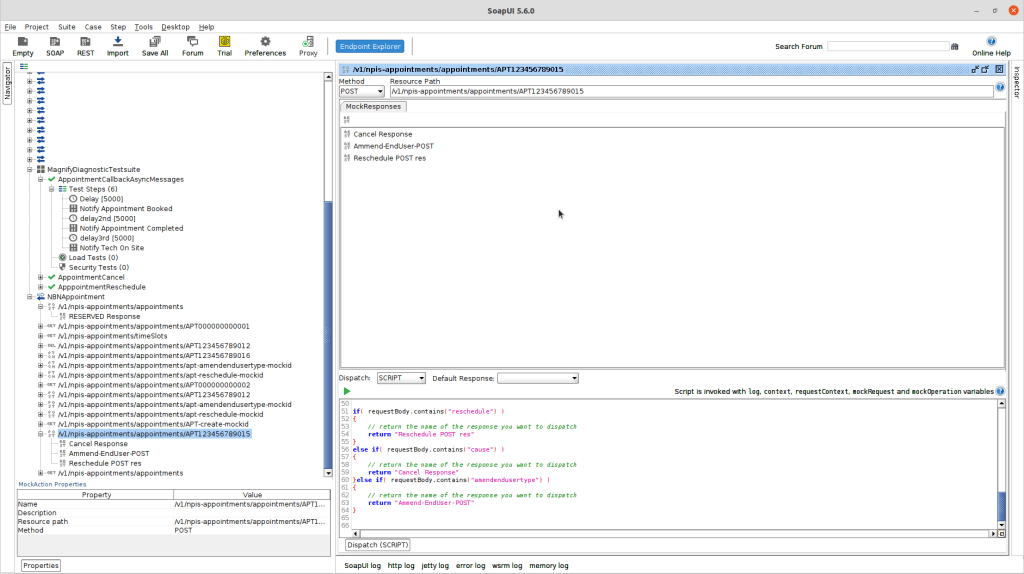
Match response based on request body

def requestBody = mockRequest.getRequestContent()
log.info "Request body: " + requestBody

if( requestBody.contains("reschedule") ){
return "Reschedule POST res"
}
else if( requestBody.contains("cause") ){
return "Cancel Response"
}else if( requestBody.contains("amendendusertype") ){
return "Ammend-EndUser-POST"
}

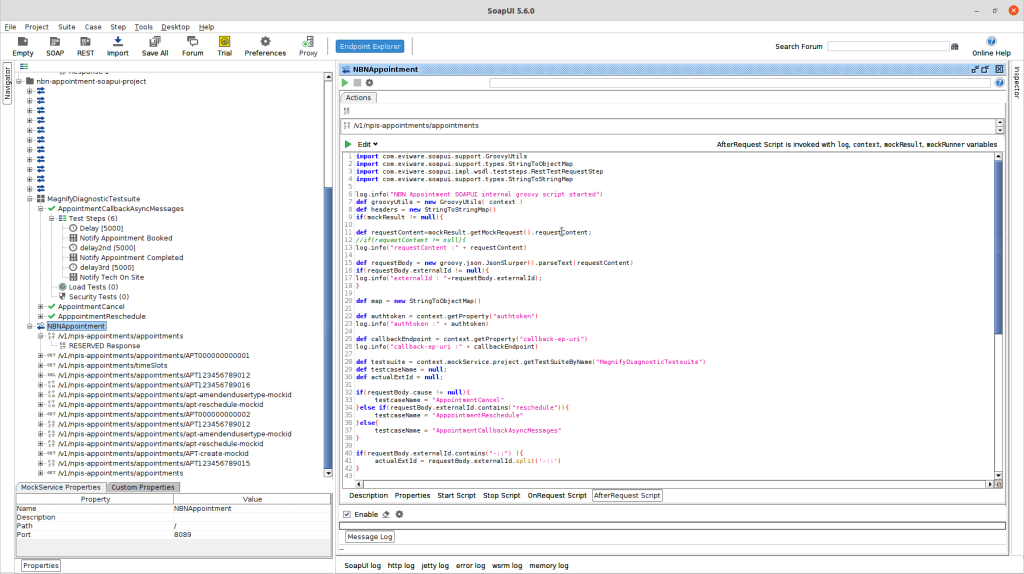
Calling TestSuit within MockService

OnRequest Script

import com.eviware.soapui.support.types.StringToStringMap 
import java.net.URL
import groovy.json.JsonSlurper

def authtoken = ""
def post = new URL("https://keycloak.awshost.io/auth/realms/cossmos/protocol/openid-connect/token").openConnection()
def message = 'grant_type=password&client_id=xyzClient&username=xyz&password=123456&client_secret=dsa213-4gfd-5645fds42423-324das'

post.setRequestMethod("POST")
post.setDoOutput(true)
post.setRequestProperty("Content-Type", "application/x-www-form-urlencoded")
post.getOutputStream().write(message.getBytes("UTF-8"))

def postRC = post.getResponseCode()
if(postRC.equals(200)) {
	def resp = post.getInputStream().getText()
	def json = new JsonSlurper().parseText(resp)
	authtoken = json.'access_token'
	log.info("Call back authToken retrieved!");
}else{
	log.info("Call back authToken not retrieved!")
}

context.setProperty("authtoken","bearer " + authtoken)

def callbackEp = mockRequest.getRequestHeaders().get("callback-ep-uri").get(0).toString()
context.setProperty("callback-ep-uri",callbackEp)

AfterRequest Script

import com.eviware.soapui.support.GroovyUtils
import com.eviware.soapui.support.types.StringToObjectMap
import com.eviware.soapui.impl.wsdl.teststeps.RestTestRequestStep
import com.eviware.soapui.support.types.StringToStringMap 

def groovyUtils = new GroovyUtils( context )
def headers = new StringToStringMap()

if(mockResult != null){

	def requestContent=mockResult.getMockRequest().requestContent;
	def requestBody = new groovy.json.JsonSlurper().parseText(requestContent)
	
	def map = new StringToObjectMap()
	def authtoken = context.getProperty("authtoken")
	def callbackEndpoint = context.getProperty("callback-ep-uri")

	def testsuite = context.mockService.project.getTestSuiteByName("MagnifyDiagnosticTestsuite")
	def testcaseName = null;
	def actualExtId = null;

	if(requestBody.cause != null){
		testcaseName = "AppointmentCancel"
	}else if(requestBody.externalId.contains("reschedule")){
		testcaseName = "ApppointmentReschedule"
	}else{
		testcaseName = "AppointmentCallbackAsyncMessages"
	}

	if(requestBody.externalId.contains("-::") ){
		actualExtId = requestBody.externalId.split('-::')
	}
		
	def testcase = testsuite.getTestCaseByName(testcaseName)

	if(actualExtId != null){
		testcase.setPropertyValue( "externalId", actualExtId[0] )
	}else{
		testcase.setPropertyValue( "externalId", requestBody.externalId )
	}

	headers.put("Authorization",authtoken)
	headers.put("Content-Type","application/json")
	headers.put("NBN-ConversationID","unique-identifier")
	headers.put("NBN-APIVersion","test-version")
	headers.put("NBN-RSPSecurityToken","securityTokenValue")
	headers.put("NBN-TransactionID","transaction-id")

	def teststep = testcase.getTestStepsOfType(RestTestRequestStep.class)
	teststep.eachWithIndex(){ step, index -> 
		teststep.get(index).testRequest.setEndpoint(callbackEndpoint)
		teststep.get(index).testRequest.setRequestHeaders(headers)
	}

	testcase.run(map, true) //true here means call asynchronously i.e. dont wait to the TestCase to finish first
}

#mock, #rest, #soapui

boot repair

  1. sudo add-apt-repository ppa:yannubuntu/boot-repair
  2. sudo apt update
  3. sudo apt install boot-repair
  4. boot-repair

Repair the boot of the computer in standard way

Say No to upload the report to the paste bin

sudo reboot now

ref : https://www.youtube.com/watch?v=bzbIckBnerg&t=703s

#boot, #os, #ubuntu, #windows

Fetch new No ref to fetch from.. branch

First try to do a normal Fetch


[Right Click] > Team > Fetch From Origin

If it is mentioned as โ€œNo ref to fetch fromโ€ฆโ€
Click on Configure

Then youโ€™ll get the list of Ref mappings

Add a ref mapping

Add the Source (Branch information on the new remote repo. You need to know the branch name in this case)

refs/heads/dev/release_02

Then it will automatically suggest the Destination local branch to update

eg : refs/remotes/origin/dev/release_02

Then the new ref mapping will be visible in the Ref Mappings

eg : refs/heads/dev/release_02:refs/remotes/origin/dev/release_02

Click Finish

Then new branch will be Fetched

Checkout the new branch

Then you can Checkout it to the local git repo as mentioned below

  • [Right Click] > Team > Switch To > Otherโ€ฆ
  • Remote Tracking > [Select the branch] > Checkout
  • Checkout As new Local Branch
  • Finish

#checkout, #fetch, #git